Desktop App Installation Guide
⚠️ macOS Security Notice
As a beta application, macOS will show a security warning. Follow these steps to install successfully.
1Download the App
First, download the RaceTagger desktop app for your platform.
Go to Download Page →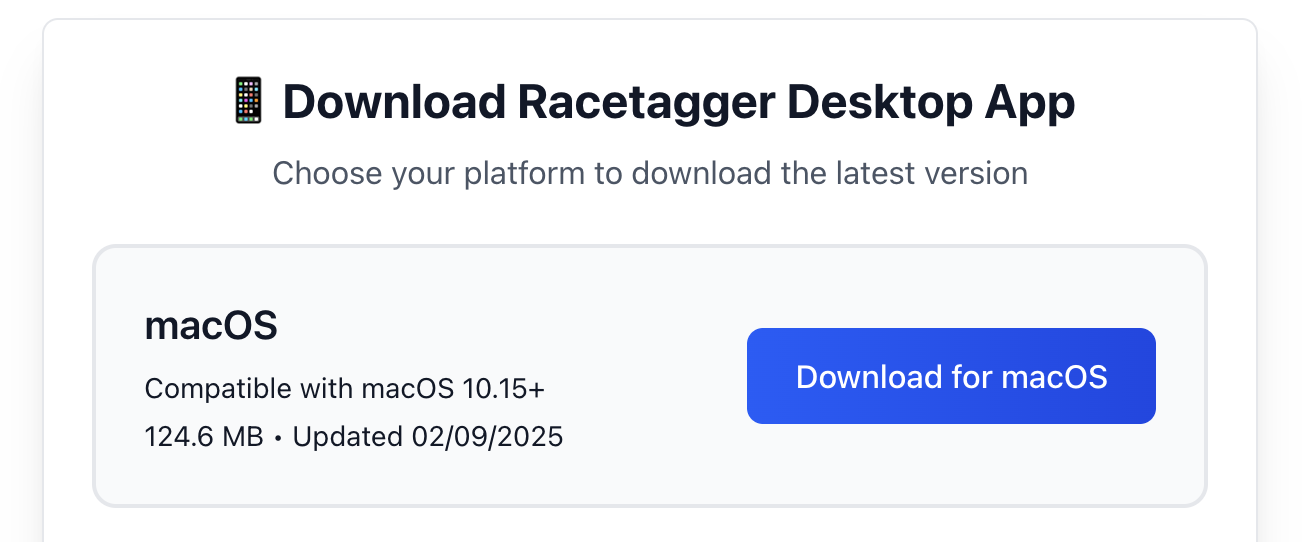
2First Launch Attempt
When you first try to open the app, macOS will show this warning:
"RaceTagger.app" cannot be opened because it is from an unidentified developer.
💡 Important: Click "OK" to dismiss this dialog. This is expected behavior for beta apps.
3Allow in Privacy & Security
Now you need to allow the app in your system security settings:
- 1
Open System Settings
On older macOS versions, this is called "System Preferences"
- 2
Go to Privacy & Security
Look for the shield icon in the sidebar
- 3
Scroll down to the Security section
You'll find this near the bottom of the page
- 4
Look for the RaceTagger blocked message
It will say something like "RaceTagger was blocked from use"
- 5
Click "Open Anyway"
This button will be next to the blocked message
4Confirm and Launch
After clicking "Open Anyway", try launching the app again. You'll see one more dialog - this time with an "Open" option.
macOS wants to make sure. You may run into malware by opening it. Are you sure you want to open it?
🎉 Success! Click "Open" and the app will launch successfully. You won't need to do this again for future launches.
💡Alternative Method
If the above steps don't work, try this alternative approach:
- 1.Right-click (or Control+click) on the RaceTagger app icon
- 2.Select "Open" from the context menu
- 3.When the warning appears, click "Open" in the dialog
❓Troubleshooting
Can't find "Open Anyway" button?
Make sure you've tried to open the app first. The option only appears in Privacy & Security settings after macOS has blocked the app at least once.
App still won't open after allowing it?
Try the alternative method above (right-click → Open). Sometimes this bypass works when the normal method doesn't.
App opens but crashes immediately?
This might be a compatibility issue. Please check:
- You're running macOS 10.15 (Catalina) or later
- You have at least 4GB of available RAM
- Your system meets the minimum requirements
Still having issues?
Contact our support team at info@racetagger.cloud and include:
- Your macOS version
- The exact error message you're seeing
- Screenshots of the issue (if possible)
Ready to Install?
Now that you know the process, download the app and get started with RaceTagger!
System Requirements
macOS
- • macOS 10.15 (Catalina) or later
- • 4GB RAM minimum (8GB recommended)
- • 1GB available disk space
- • Intel or Apple Silicon processor
Windows
- • Windows 10 or later
- • 4GB RAM minimum (8GB recommended)
- • 1GB available disk space
- • 64-bit processor